
The WooCommerce plugin is popular among online store owners, since it is best suited for creating ecommerce-projects based on CMS WordPress. Many ready-to-use themes have been developed for WooCommerce for various product lines, but a large number of users prefer their own templates, which potentially better consider certain business needs. But over time, this may cause a compatibility conflict: WooCommerce authors release a new version of the plugin, its files are updated, but the templates placed in the directory with your own theme are not automatically replaced and remain unchanged.
That is why after another WooCommerce update, you see a warning in the website administration panel: “Your theme () contains outdated copies of some WooCommerce template files. These files may need updating to ensure they are compatible with the current version of WooCommerce” (see the screenshot below).

Let's not waste any time, let's look at possible ways to fix the error right away.
Encountered this error?
Fixing outdated WooCommerce template files: a step-by-step guide
First of all, you should use the recommendations given in the error message itself. Check if an update is available for your active theme. If it is, then apply it. This is often enough to replace the WooCommerce templates with new copies of the files. If there is no update, try asking the theme developers when it will be released.
But there are slightly worse situations. For example, the developers have already stopped supporting the theme. Is it possible to fix the WooCommerce template files in this case? Yes! To do this, follow these steps:
- Open WooCommerce > Status > System Status.
- Go to the Overrides section. Here you will find a list of files that have outdated versions.

Example of a message about an outdated version of the cart-shipping.php file
- Compare the theme files with the corresponding plugin files using code editors (such as PhpStorm). In particular, PhpStorm has a built-in option for comparing content. To call it, select two files you want to compare (click on them while pressing the Ctrl key), then go to View > Compare With or press Ctrl+D.
- If you notice any differences or additions to the WooCommerce plugin files, analyze them and make the appropriate corrections to the theme files if necessary. Woocommerce developers usually provide a list of implemented changes. You can find it at https://developer.woocommerce.com/releases/.
How to update WooCommerce template files: examples
Example 1
Let's compare the versions of the proceed-to-checkout-button.php files using PhpStorm (hereafter, the theme template files will be placed on the left, and the plugin template files on the right):

The analysis shows the following differences:
- the theme template is version 3.4.0, and the current version is 7.0.1;
- the html-markup of the theme template is different from that of the plugin (we can see that there is more code in the theme).
To fix the problem, you need:
- to synchronize the version (write in the theme file the version number specified in the WooCommerce plugin file;
- html-markup can be left as it is, because it is a custom adaptation of the theme author.
Example 2
Let's compare the cart-empty.php files:

Differences:
- the theme template uses 3.5.0 version and the plugin has 7.0.1 one;
- we see the comment that since version 4.6.8 the filter “woocommerce_return_to_shop_text” has been introduced, which processes the output of the phrase “Return To Shop”. This filter is not present in the theme file.
What to do:
- synchronize the version;
- copy and implement the “woocommerce_return_to_shop_text” filter to the theme.
Example 3
Let's compare payment.php files:
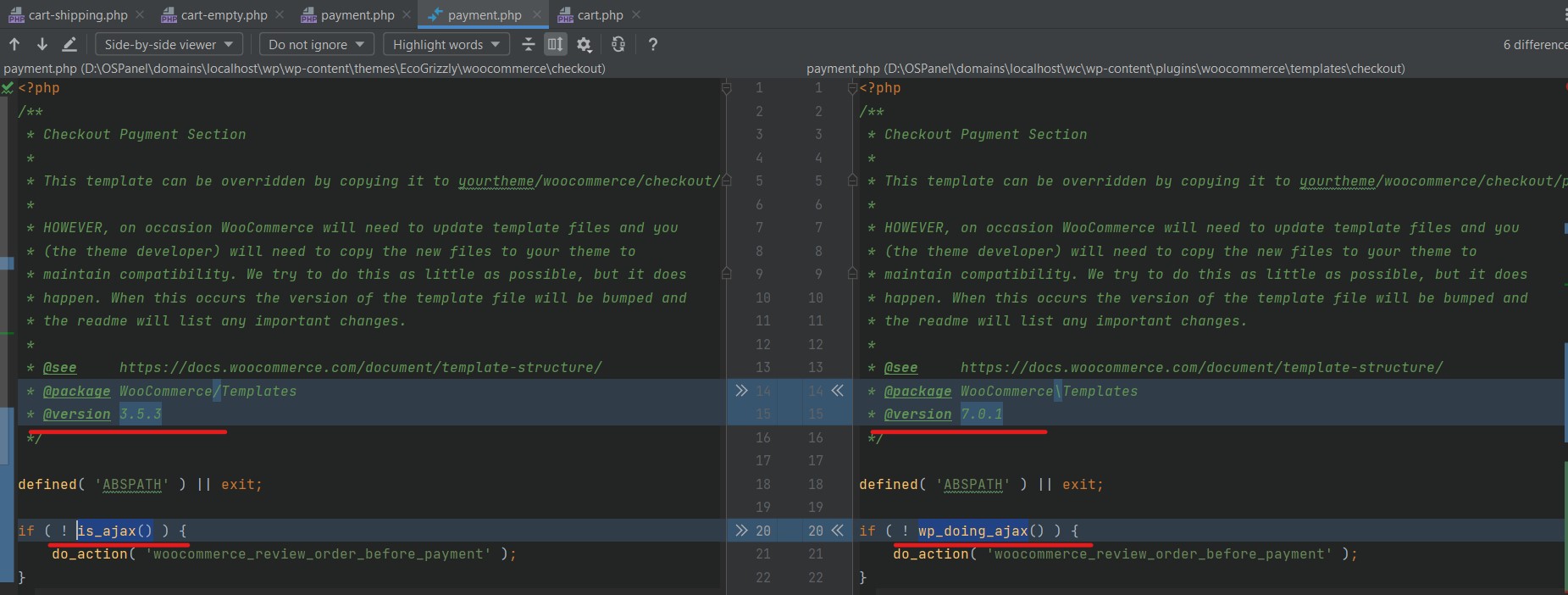
Differences:
- again, we see different version numbers;
- instead of the outdated is_ajax() function, the up-to-date wp_doing_ajax() has been implemented.
How to fix:
- synchronize the version;
- replace the is_ajax() function in the theme with wp_doing_ajax().
Tips for fixing the problem yourself
When analyzing files, focus on several points:
- html-markup mismatches are not always a problem, as they are often the root cause of customizing WooCommerce templates. In most cases, they can be ignored;
- look out for new filters and hooks (functions apply_filters(), do_action()), as well as comments offered by the plugin developers. Analyze each of them and decide if they are necessary for your theme;
- be sure to replace outdated functions with up-to-date ones;
- write the current version of the template file in your theme;
- after making all the changes, go back to the “Overrides” section to make sure that the version conflict message is no longer displayed.
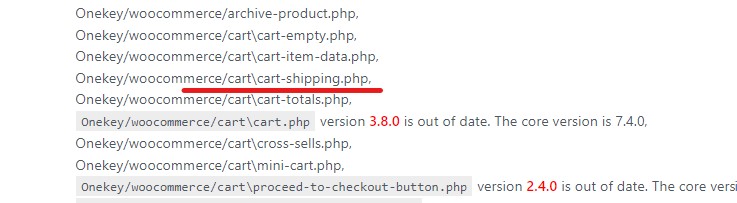
After successfully working with the cart-shipping.php file, we can see that the message about the outdated version has disappeared
Perhaps you need our help?
