
One of the common errors that occurs on WordPress websites is “Cannot modify header information - headers already sent”.
In general, the error is as follows:
Warning: Cannot modify header information - headers already sent by (output started at /home/hadver/arto.agency/wp/wp-includes/script-loader.php:2838) in /home/hadver/arto.agency/wp/wp-content/themes/kadence/header.php on line 29.

Since this is a warning level error, it should not lead to the “white screen of death” but the very fact of its appearance is the result of a website not working properly.
TL;DR. This error occurs when HTTP-response headers, for various reasons, are sent after the response body has been output. We described this in more detail below. If you want to immediately learn how to fix this error, then browse to this section.
Faced with this issue?
What is HTTP-response?
A web server interacts with a client (browser) using the HTTP protocol. According to this protocol, a response sent to a client consists of two parts: headers and body.
The body, in most cases, is the visible part. This is exactly the same website page being viewed in the browser. But the headers cannot be seen without the use of special software tools.
What are HTTP-response headers for?
HTTP-response headers are simple lines of text that can contain not only service information about a page, but also provide certain instructions to a client concerning it. They consist of two parts: the name of the header and its value. They are used for various purposes, including:
- providing information about the web-page such as its encoding and the MIME type of the content;
- page caching management and related assets;
- redirecting the browser to another address;
- cookies files management;
- access denial, etc.
So what is the reason for the error?
According to the HTTP protocol, headers must always precede the response body. If this order is violated, that is the headers start to be sent when the actual body output has already begun, then the error “Cannot modify header information” appears.
However, it should be noted that WordPress websites, like other php websites, have a built-in output buffering mechanism. This means that the response body may first be captured to a buffer instead of being output directly to the client. In this case, even if the headers are sent after the body is output, the error may not occur. However, if the buffer overflows, or is forcibly cleared/flushed before displaying the headers, then the principle of their priority will be violated, and an error will appear.
For the sake of simplicity, hereafter we ignore the buffering mechanism.
The most common reasons of “Cannot modify header information” error
Whitespaces or tabs before the opening <?php tag
One of the common causes of the error is the presence of whitespace characters before the opening <?php tag in php files. Despite the fact that the space is not visualized in any way, the server considers it to be the beginning of the response body output. Accordingly, if headers start to be sent somewhere after this whitespace, then the error appears.
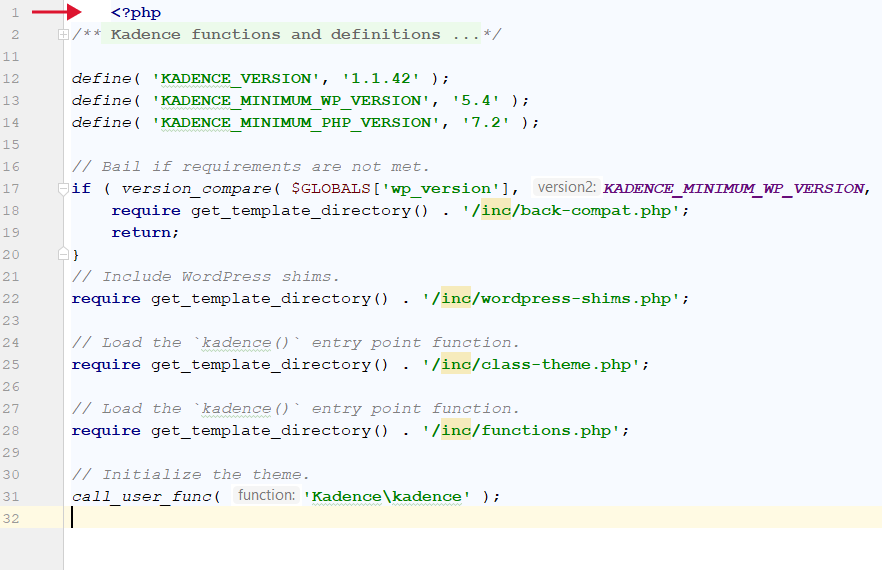
The arrow points at the tab character that comes before the opening <?php tag at the very beginning of the file.
Echo or print expressions before sending headers
Similarly to the previous case, if there is an explicit data output using echo or print expressions before sending the headers, then this can lead to an error.

Arrow 1 indicates text output using the echo construct. Note that below is the function (arrow 2) that sends the headers.
Output of the html block before sending headers
Outputting the HTML-code before sending the headers is another cause of this problem. Such cases are found in WordPress templates or template parts files, where there can be a lot of markup, and where it is not appropriate from a programmatic point of view to organize the headers output.

Arrow 1 indicates the output of the html code. Headers are sent below (arrow 2).
Late attempt to set cookies
Since cookies are sent from the server as headers, trying to set them after the body output has started may also result in the error. In this case, as in the previous one, sending cookies to the user must be programmed at earlier stages of the web application, before the html output.
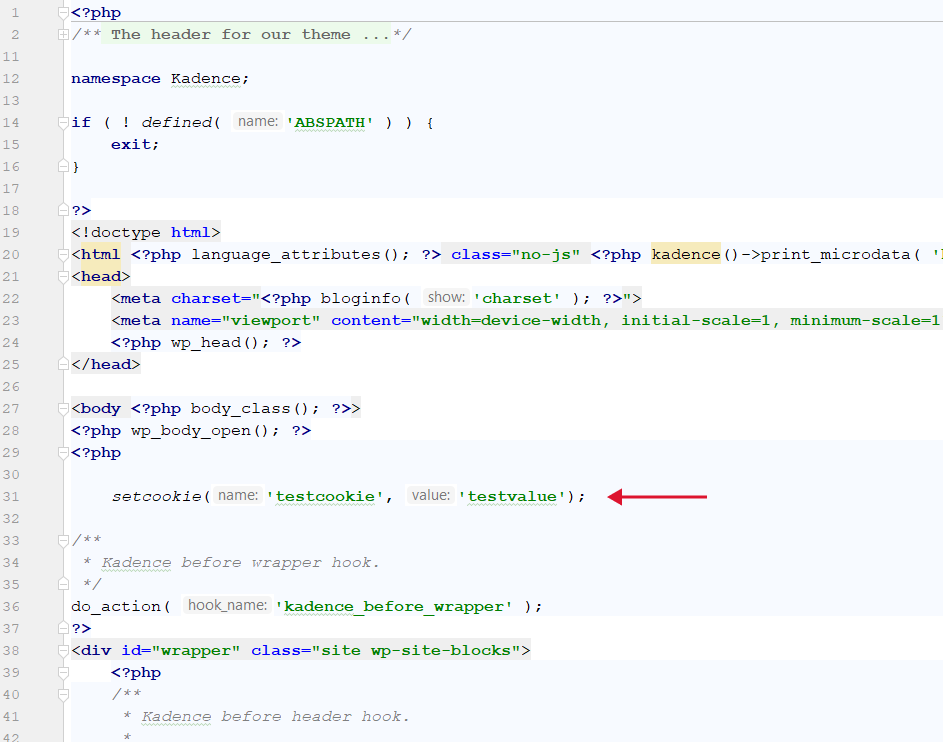
The arrow indicates an attempt to install cookies after the html code output
Late initialization of a php session
Sessions are an excellent mechanism for ensuring high-quality interaction between a web-application and a client. Without them, it is difficult to imagine the functioning of the shopping cart in online stores, wishlists and other modules which require certain information to be kept while a client is working with a website.
If the built-in php features are used to manage sessions on the site, then, most likely, the session will be started by the session_start() function. And here it is important to understand one thing - to identify the session client, appropriate cookies must be sent to them, and as we have already found out, they are set through headers. Therefore, if you try to start a session after the body output has already started, it will lead to a slightly different wording, but similar in essence error “Session_start(): Cannot start session when headers already sent in /home/hadver/arto.agency/wp/wp-content/themes/kadence/header.php on line 33”.

At the same time, the code that led to such a situation may look like this:

The arrow indicates the start of the session after the html code output
4 ways to fix "Cannot modify header information" error
To fix the error, it's needed to make changes to the php file in which it appeared. But how to understand which of the hundreds or even thousands of website files should be edited? Everything is not so complicated: you just need to read the error text carefully again:
Warning: Cannot modify header information - headers already sent by (output started at /home/hadver/arto.agency/wp/wp-includes/script-loader.php:2838) in /home/hadver/arto.agency/wp/wp-content/themes/kadence/header.php on line 33.
It's clear from the text that the body output is started in the file script-loader.php on the 2838th line (output started at /home/hadver/arto.agency/wp/wp-includes/script-loader.php:2838), and after starting the body output, the header.php file on line 33 tries to send the headers.
Based on what we learned earlier in this article, the script-loader.php file will most likely need to be edited. Perhaps there is a space character, unplanned output of html content, etc. Note that the error text shows the full absolute paths of the file locations. We will need this information for further steps.
Let's see now how we can edit the problematic file(s) ourselves.
Editing through the theme editor in the admin panel
If the error occurs in the theme files and the admin panel of your website is working, proceed to it and open the theme editor, then find the file and line in it where the error occurred. Analyze this code section and, if necessary, remove any extraneous characters that start the response body output. After that, save the changes and check if the error message is displayed.
Editing via FTP (Filezilla)
If access to the admin panel is not possible or the file is not in the theme, you can edit the file using an FTP-client such as FileZilla. To do this, you need to find out the access data to the server using the FTP protocol. You can find them in your hosting/server control panel. As you have login and password, connect to your server, find the corresponding file by its path, which is indicated in the error text, make changes and save them.
Reinstalling or updating a plugin
Again, note the absolute path to the file with the error. If you see /wp-content/plugins/ there, the error is probably related to a certain plugin. Right away after the line /wp-content/plugins/ will be the name of the plugin folder, by which you can understand what the actual plugin is called. If you have a working admin panel, then just try to update the plugin, because if the error occurred due to the fault of its developers, then they, most likely, already know about it and have released a fix. If the plugin does not have an update, then you can, on the contrary, try to roll it back by downgrading it. If this is also problematic or the admin panel does not work, then you will have to fix the error manually via FTP, as described above.
Restore from backup
If you have a backup copy of the website files created before the error occurred, you can try to restore from it. This method can be effective if you need to do everything here and now, and if you do not have enough opportunities to study the files on your server.
Perhaps you need our help?
Instead of conclusion
Fixing the "Cannot modify header information" error is not difficult, the main thing is to understand it correctly and make the appropriate corrections to the files. Despite this, sometimes more complex situations may arise, when the cause of the error is not the accidental start of the body output, but incorrectly written code: wrong session initialization or cookies sending (as described above), etc. In this case, it is worth studying the program logic of the website and carrying out deeper refactoring, which will require the involvement of qualified specialists.
